

Images can be added to your Voyager scene in a number of different ways and for a number of different purposes.
Adding content images: articles or annotations
Please see the documentation for the articles task or annotation task for more information.
Adding environments maps, overlays, or image planes
If using Voyager Story in standalone mode or with asset drag/drop enabled:
- Drag your image to the Explorer preview pane and drop.
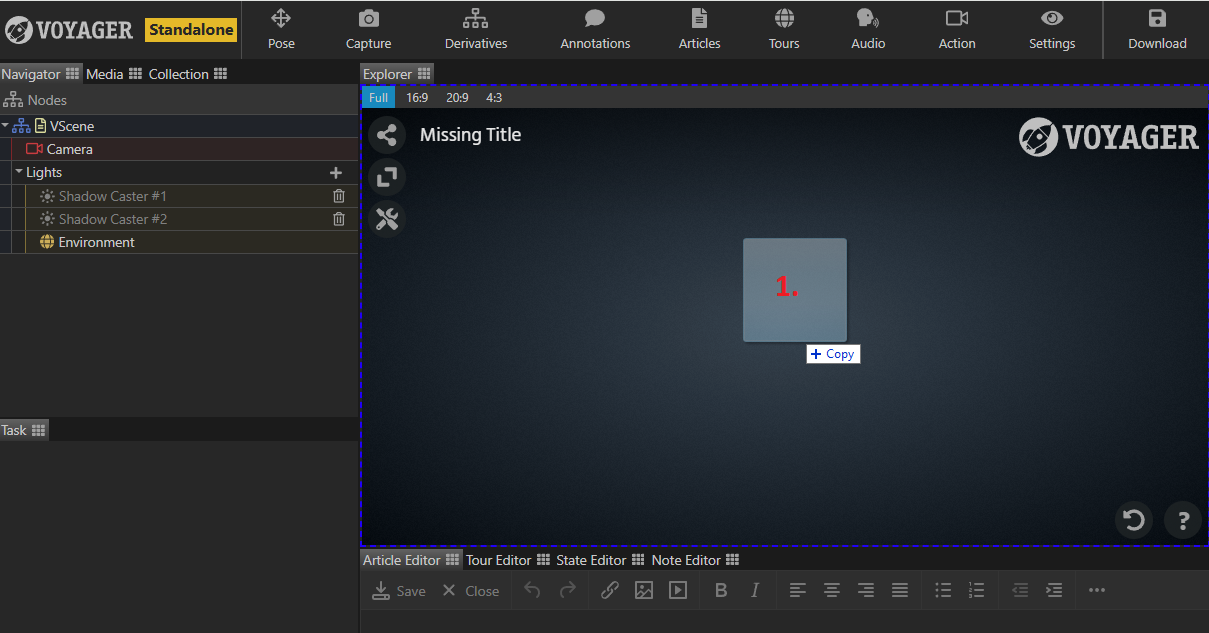
-
Select an image purpose from the menu
- Environment Map: This map will be added as a custom environment map option for this scene.
- Overlay Map: Selecting this option will open a list of all models currently in the scene. This map will be added as an overlay to the selected model.
- Image Plane: A new plane geometry will be added to the scene textured with this image. It will be initially sized at 100 scene units and the aspect ratio of the image.
- Misc Asset: This image will just be added to your scene package for future content use.
-
Click the “Import Image” button to lock in your choice and complete the import.
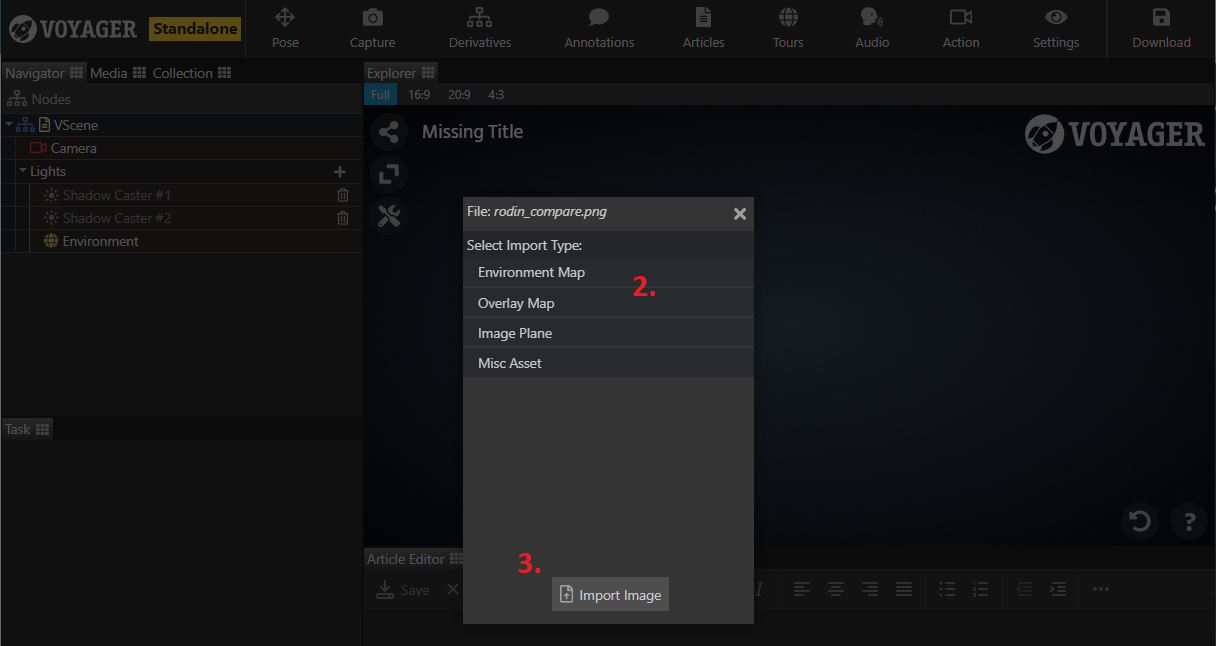
If using a non-standalone or drag/drop enabled version follow the same steps as above but replace step 1 with dragging your image to the media pane as described in the articles task.
