Globus Basics and File Transfers
Summary
This guide introduces Smithsonian staff to Globus, a secure platform for transferring large datasets between storage systems. You'll learn how to log in with your Smithsonian credentials, navigate the web interface, transfer files between collections, and monitor your transfer activity. This foundational guide prepares you for more advanced Globus capabilities covered in our companion guides.
What is Globus?
Globus is a data management service that enables fast, reliable transfer of large files between storage systems. Unlike email attachments or consumer cloud services, Globus is designed for large-scale data—think gigabytes to terabytes of genomic sequences, archival video collections, high-resolution imagery, or simulation outputs. Transfers happen server-to-server, so you can start a transfer and close your laptop; Globus handles the rest.
Smithsonian Globus Infrastructure
Smithsonian maintains dedicated Globus Data Transfer Nodes at several locations:
- Smithsonian Data Center — Includes access to Hydra (high-performance computing cluster) storage, DAMS NAS storage, and certain unit managed network drives
- STRI (Smithsonian Tropical Research Institute) — For tropical research data workflows
- SAO (Smithsonian Astrophysical Observatory) currently in testing — For astrophysical research data
These institutional endpoints allow you to move data between Smithsonian systems and collaborate with partners worldwide.
Prerequisites
Account Requirements
| What You Need | How to Get It |
|---|---|
| Smithsonian network account | Your standard SI credentials (same as email login) |
| Server account (for Smithsonian storage access) | Contact system administrators (see below) |
To access specific storage systems: - Hydra: Request an HPC account on the SI Service Portal - Hydra HPC Support: SI-HPC@si.edu - DAMS NAS Workflows: SI-Globus@si.edu - STRI users: Contact STRIhelp@si.edu to request Globus Data Transfer Node Server access
Need more general support? Contact SI-Globus@si.edu
Network Requirements
You can access Globus from anywhere with an internet connection—no VPN required for the web interface. However, you'll need appropriate server accounts to access data stored on Smithsonian systems.
Getting Started: Logging Into Globus
Step 1: Navigate to Globus
Open your web browser and go to app.globus.org. You'll see the Globus login page.
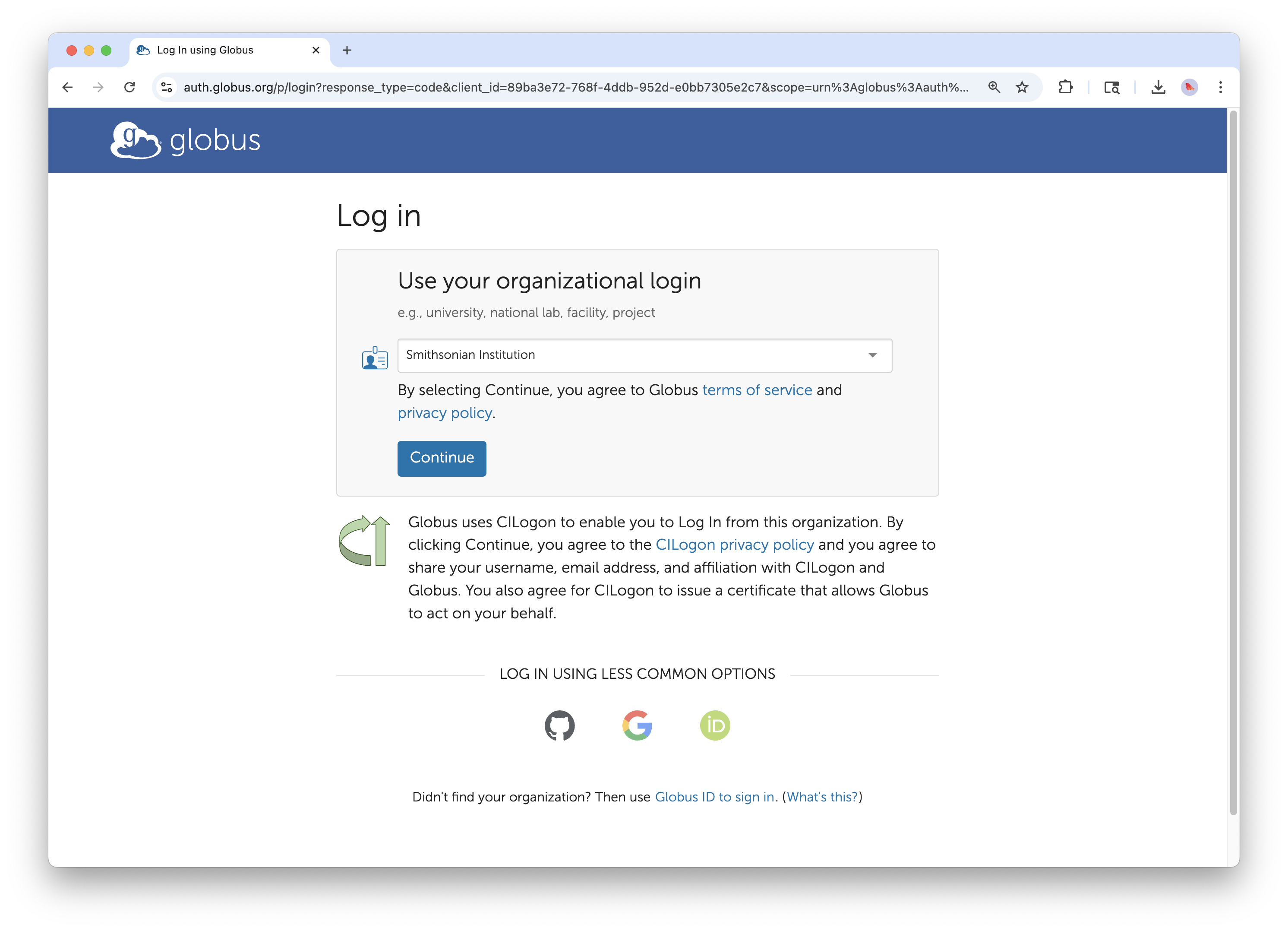
The Globus login page. Use the dropdown to search for Smithsonian Institution.
Step 2: Select Your Institution
Click the organization dropdown and search for "Smithsonian Institution." Select it from the list, then click Continue.
Globus uses the institution's existing login system—you'll authenticate with the same credentials you use for Smithsonian email and other institutional services.
Step 3: Authenticate with Smithsonian Credentials
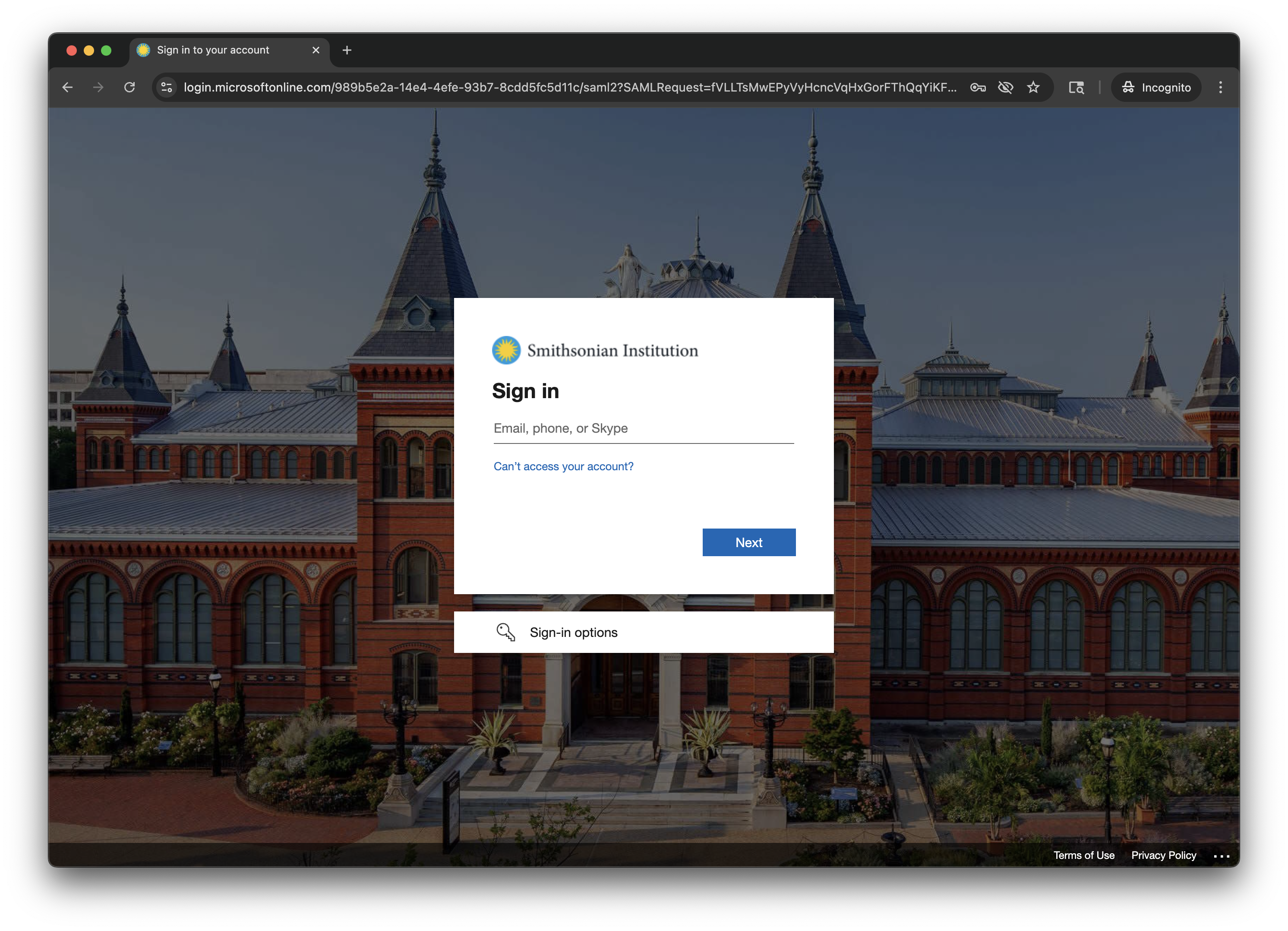
Enter your Smithsonian network credentials when prompted.
You'll be redirected to the Smithsonian login page. Enter your network username and password, and complete multi-factor authentication.
Step 4: First-Time Login Setup
If this is your first time using Globus with your Smithsonian credentials:
- You'll see a welcome message confirming successful authentication
- If you've used Globus before with a different login (personal Google account, another institution), you can link accounts to maintain a unified history
- For most users, simply click Continue to proceed
Step 5: Grant Application Permissions
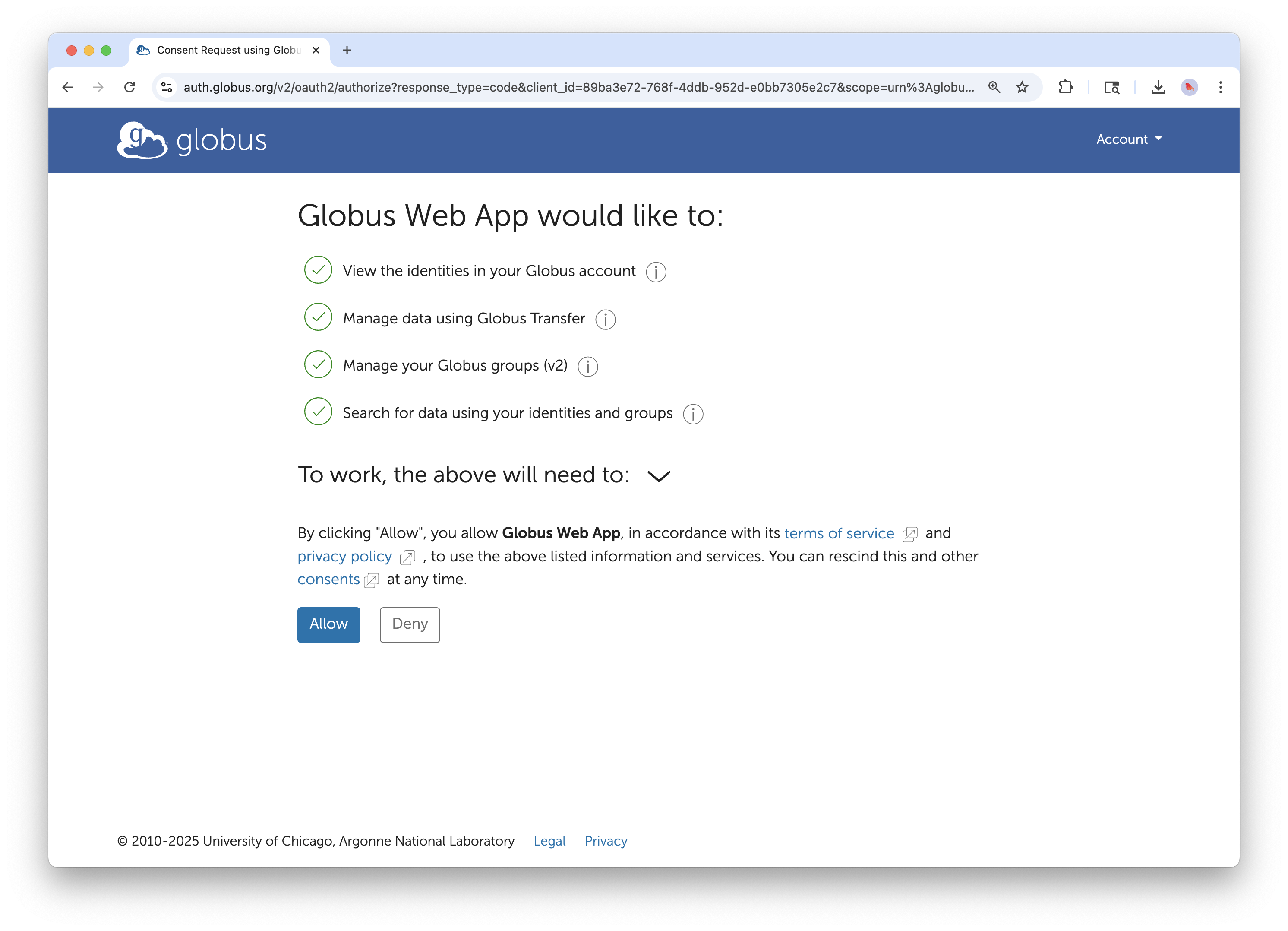
Globus requests permission to access data on your behalf. Click Allow to proceed.
Globus will ask for permission to perform actions on your behalf—searching collections, managing transfers, and accessing your data. Review the permissions and click Allow to continue to the File Manager.
Navigating the Globus Interface
After logging in, you'll land in the File Manager—your primary workspace for browsing and transferring files.
The File Manager Overview
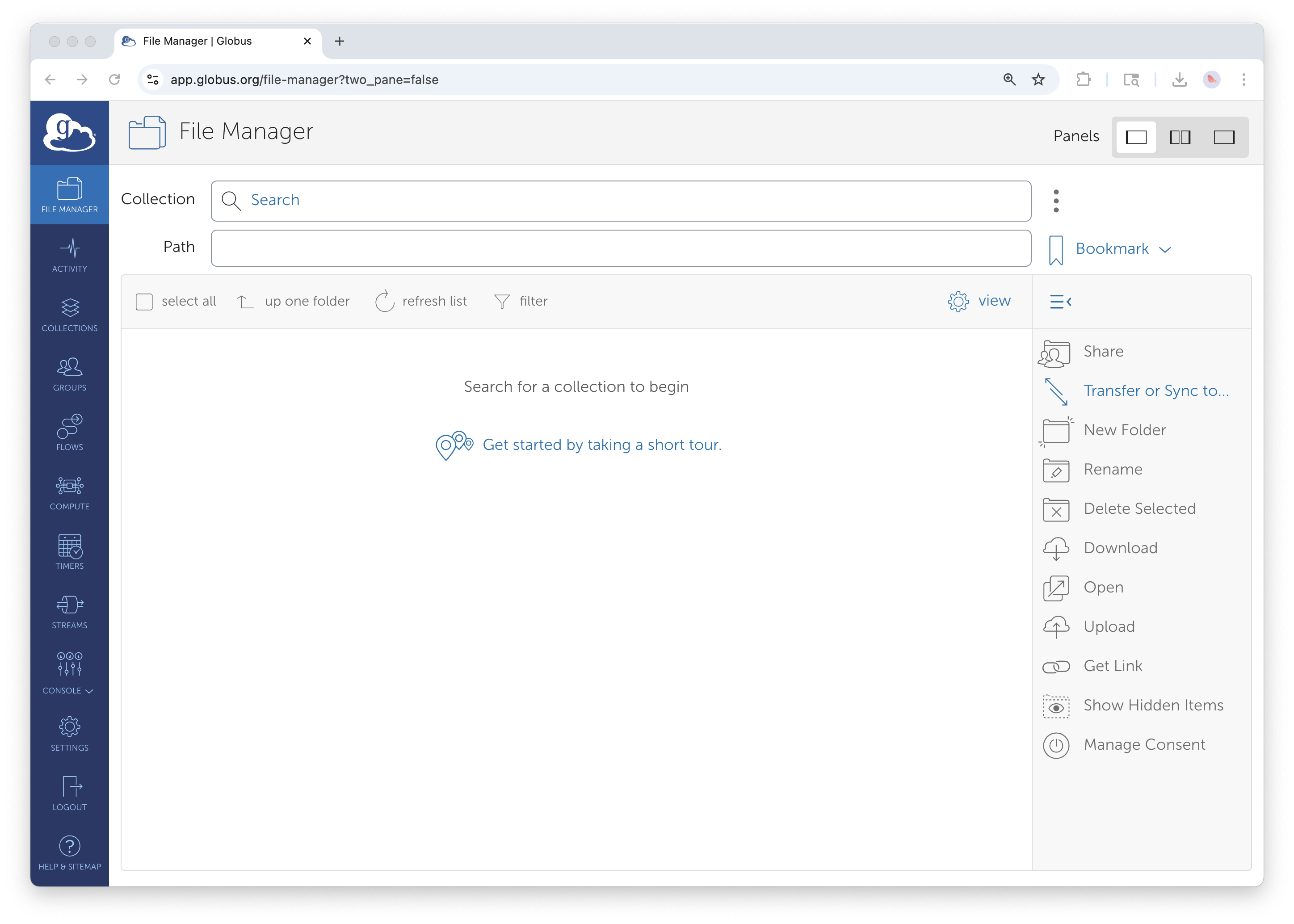
The File Manager interface. The left sidebar provides navigation; the main area displays your current collection.
Left Sidebar Navigation: - File Manager — Browse collections and initiate transfers (where you'll spend most of your time) - Activity — Monitor ongoing and completed transfers - Collections — View and manage collections you own or have access to - Groups — Manage group memberships for collaborative access - Settings — Configure preferences and manage your Globus identity
Main Panel: - Collection field — Search for and select data collections - Path field — Shows your current directory location within the collection - File listing — Browse files and folders in the selected collection
Finding Collections
Collections are the fundamental unit in Globus. They represent accessible storage locations. To work with any data, you first need to find and select a collection.
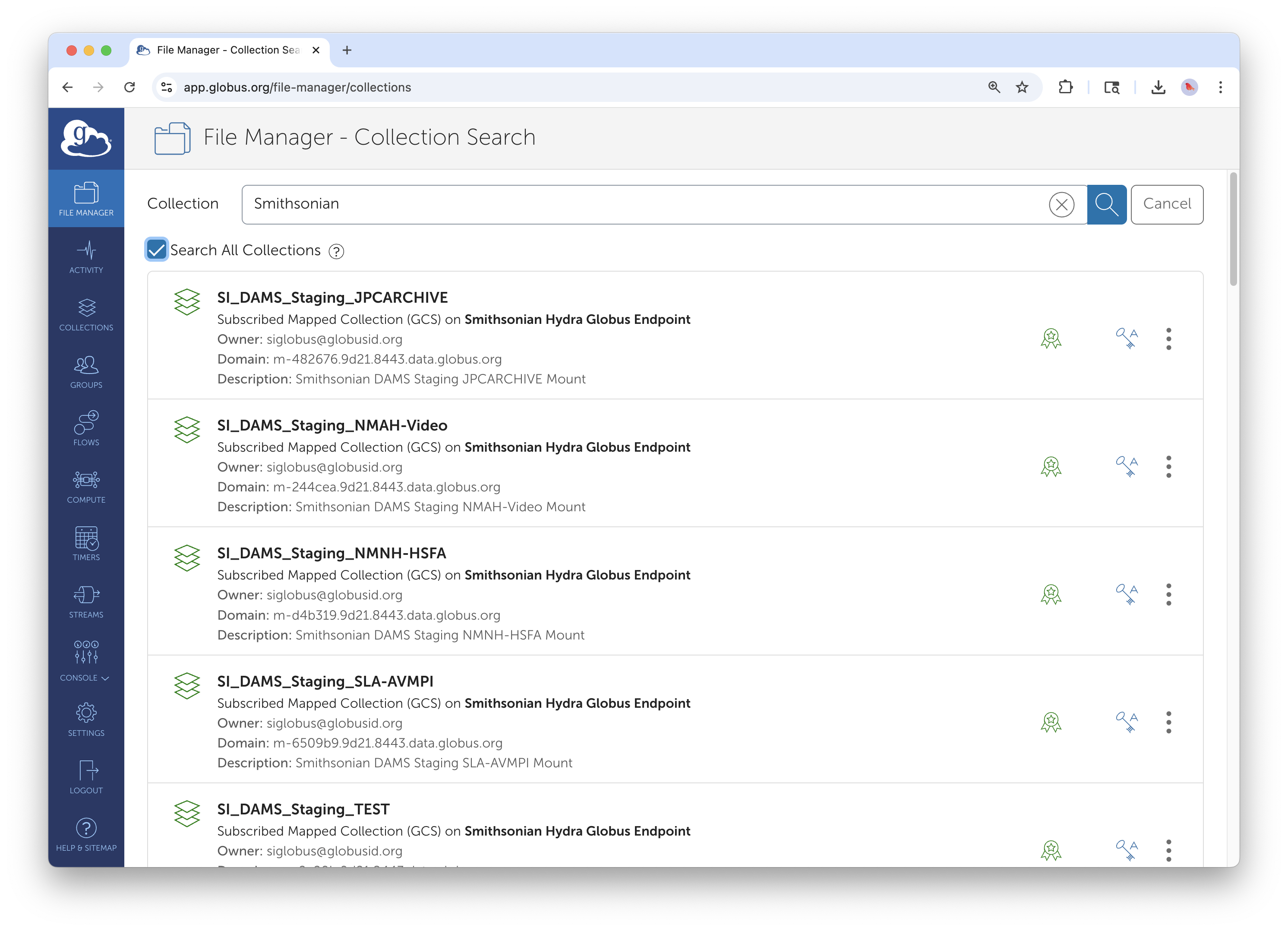
Click in the Collection field and type to search. Results appear as you type.
To find a Smithsonian collection:
- Click in the Collection search field
- Search for "Smithsonian" to see all collections managed on Smithsonian Data Transfer Nodes
- Browse the results to find the collection matching your storage system (Hydra, DAMS Staging NAS, STRI, SAO, etc.)
- Select the appropriate collection from the search results
Tip: There are dozens of Smithsonian-managed collections. If you're unsure which collection corresponds to your storage system, contact SI-Globus@si.edu for guidance.
Browsing Files and Folders
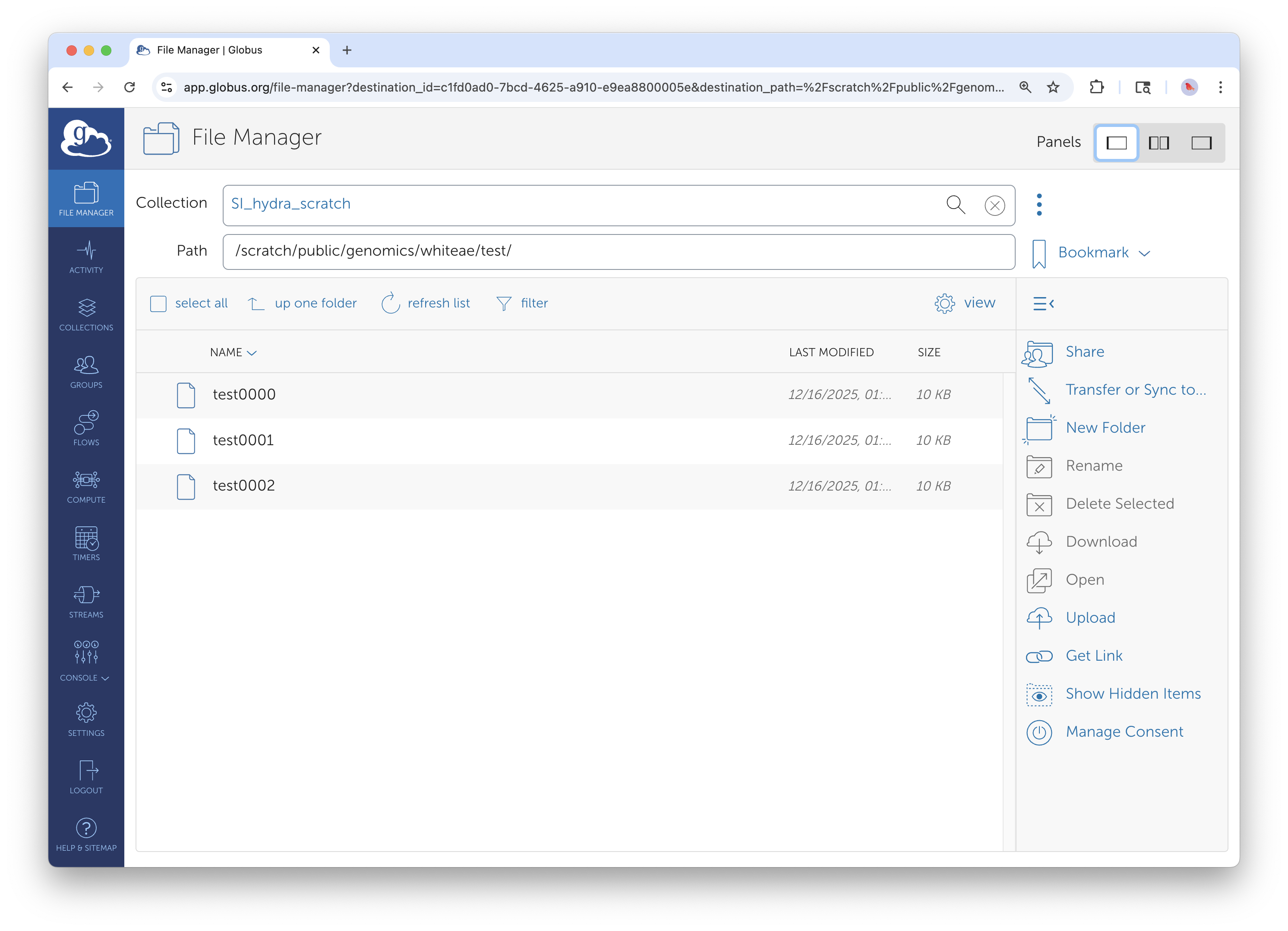
After selecting a collection, you can browse directories and files.
Once you've selected a collection:
- Double-click folders to navigate into them
- Use "up one folder" to move to the parent directory
- The Path field shows your current location—you can also type paths directly
- Click refresh list to update the view if files have changed
Transferring Files Between Collections
The core Globus workflow involves transferring files from a source collection to a destination collection. Globus uses a two-panel interface that makes this intuitive.
Step 1: Open the Two-Panel View
Click the Panels button in the top right to enable two-panel view for transfers.
In the top-right corner of the File Manager, you'll see Panels options. Click to enable the two-panel view, which displays source and destination side by side.
Step 2: Select Your Source Collection
In the left panel, search for and select the collection containing the files you want to transfer. Navigate to the directory with your data.
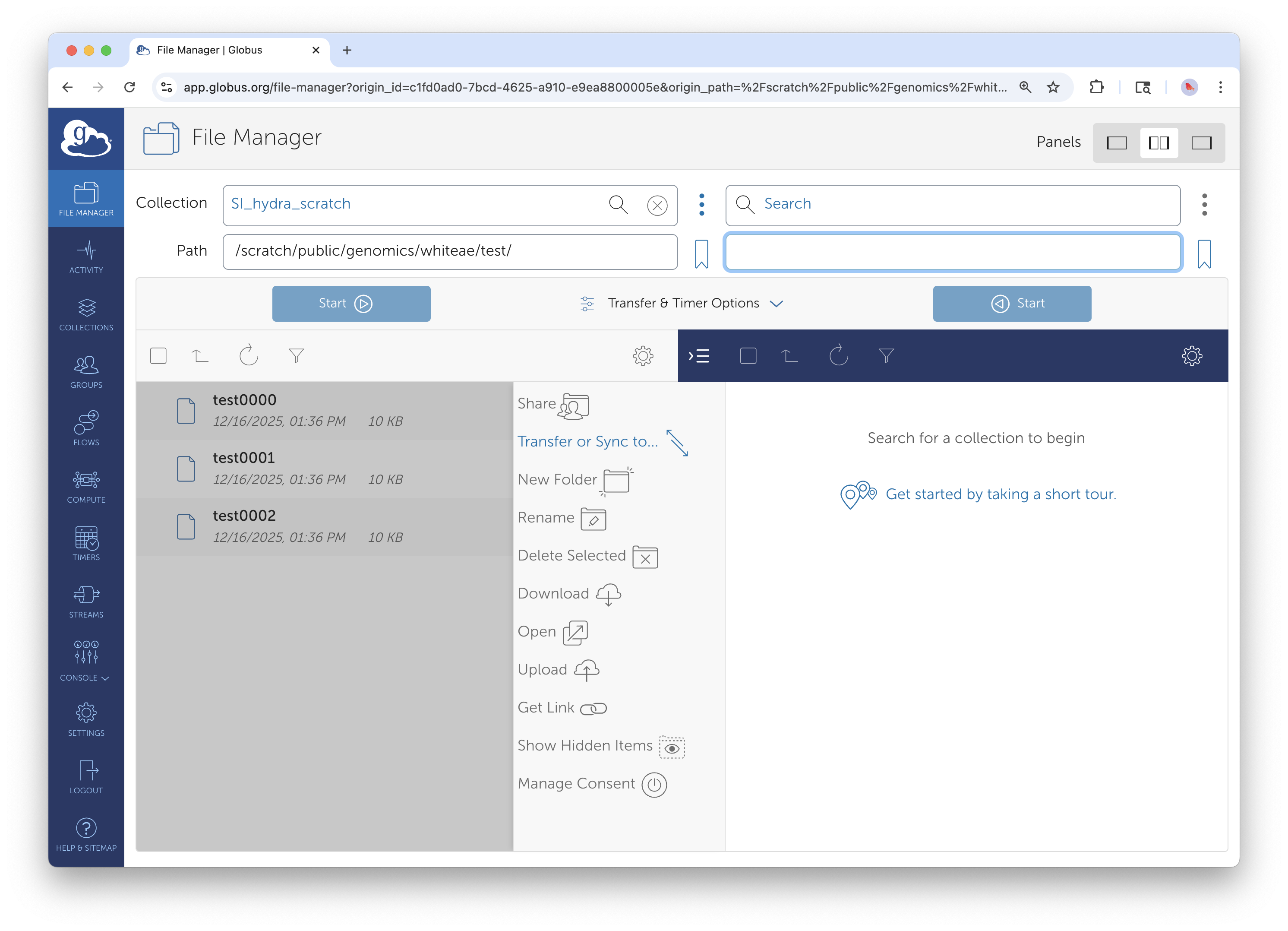
The left panel shows your source collection. Browse to the files you want to transfer.
Step 3: Select Your Destination Collection
In the right panel, search for and select where you want the files to go. Navigate to the target directory.
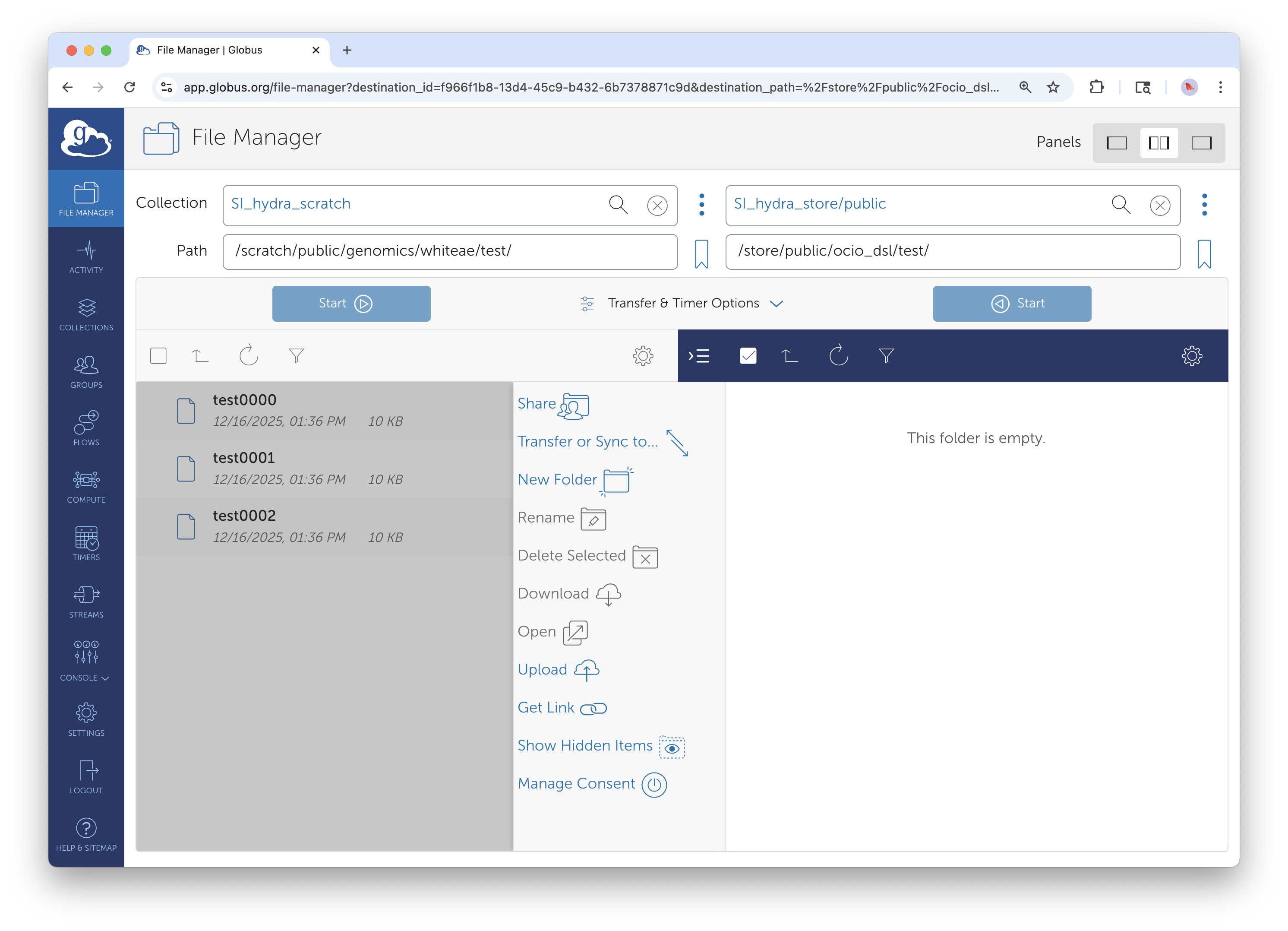
Set up both panels: source on the left, destination on the right.
Step 4: Select Files and Start Transfer
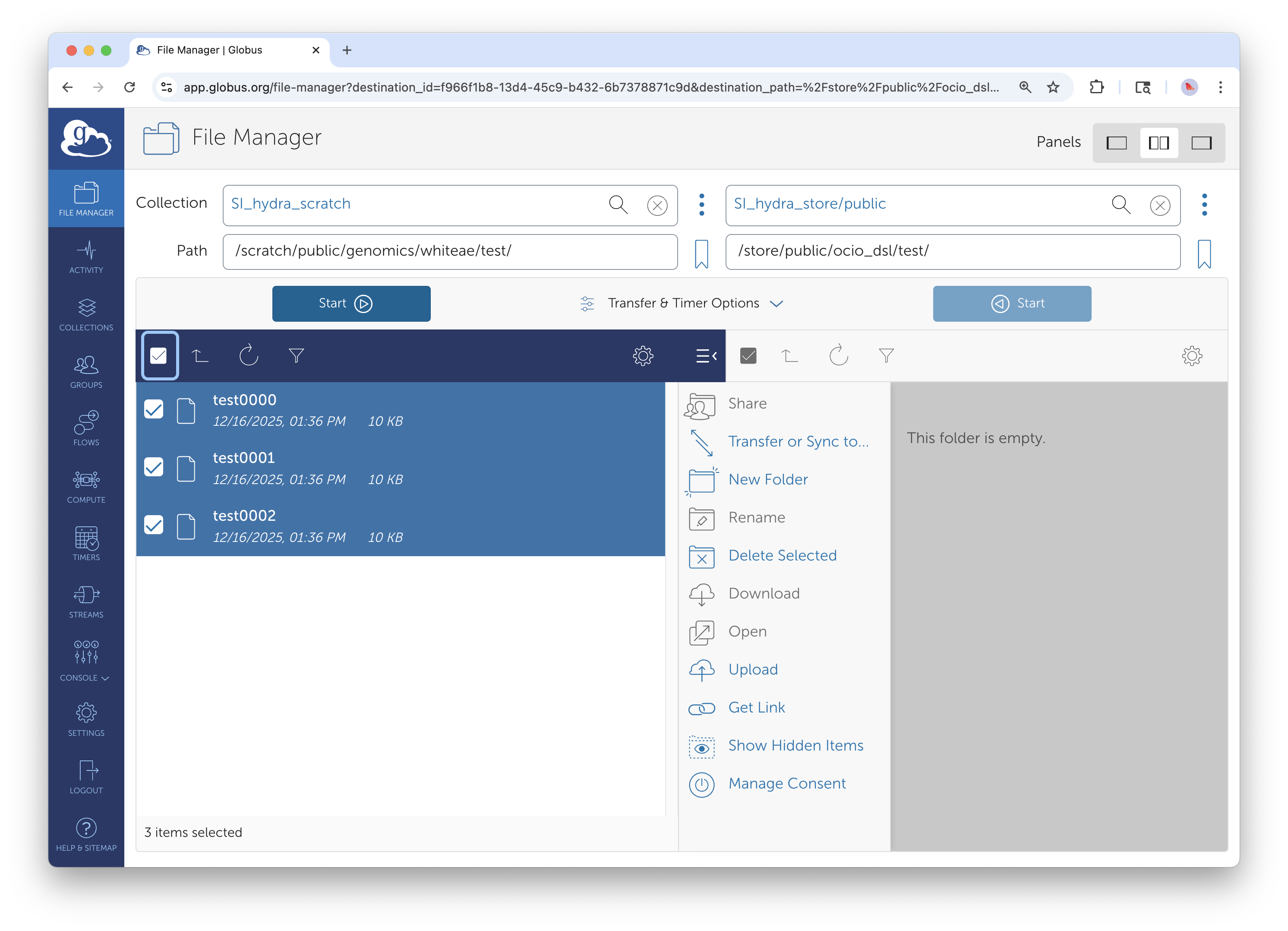
Select files using checkboxes, then click Start to initiate the transfer.
- In the source panel (left), check the boxes next to files or folders you want to transfer
- Selected items will be highlighted
- Click the Start button (blue button with arrow) above the source panel
- You'll see a confirmation that your transfer request was submitted
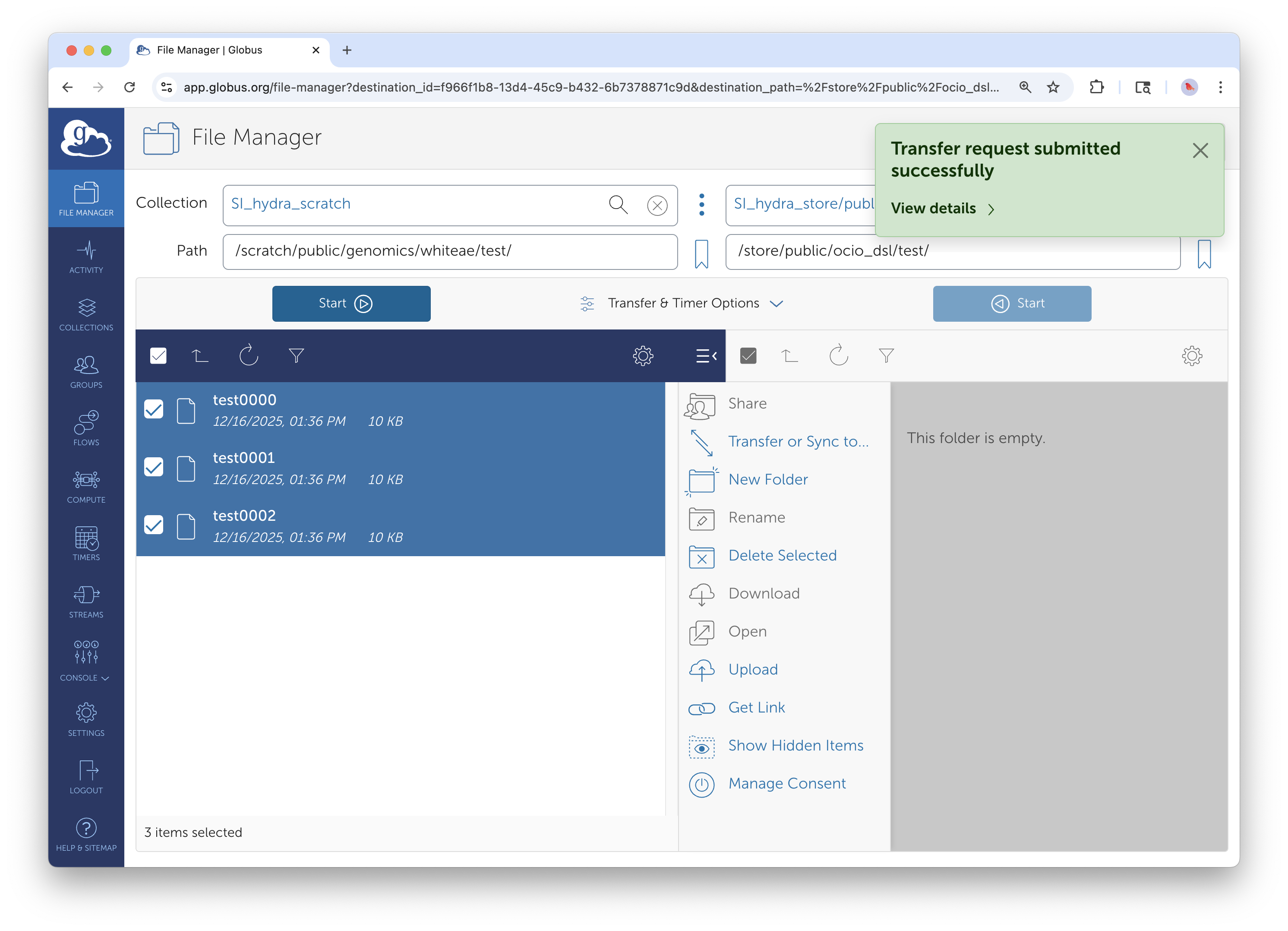
Transfer submitted confirmation. Click "View details" to monitor progress.
Important: You can now close your browser or shut down your laptop. Globus handles the transfer server-to-server, you don't need to stay connected.
Understanding Transfer Direction
The Start button appears on both panels. The button you click determines the transfer direction:
- Click Start on the left panel → Transfer from left to right
- Click Start on the right panel → Transfer from right to left
The blue "Start" button with the play icon initiates the transfer; the teal button with the clock icon is for scheduling (covered in Guide 4: Advanced Features).
Monitoring Transfer Progress
Viewing Active and Completed Transfers

The Activity page shows all your transfers. Click the arrow to view details.
Click Activity in the left sidebar to see your transfer history. This page shows:
- Active transfers — Currently in progress
- Completed transfers — Successfully finished
- Failed transfers — Transfers that encountered errors
You can filter by status (Active, Succeeded, Failed) and search by collection name.
Transfer Details

Transfer details show complete information: files transferred, speed, and any errors.
Click on any transfer to see detailed information:
- Task Label — Description of the transfer
- Source and Destination — The collections involved
- Condition — Current status (Active, Succeeded, Failed)
- Files/Bytes Transferred — Progress information
- Duration — How long the transfer took
- Effective Speed — Transfer rate achieved
The Event Log tab provides a timeline of transfer events, useful for troubleshooting.
Handling Authentication Requests
When accessing certain collections, you may see an "Authentication/Consent Required" message.
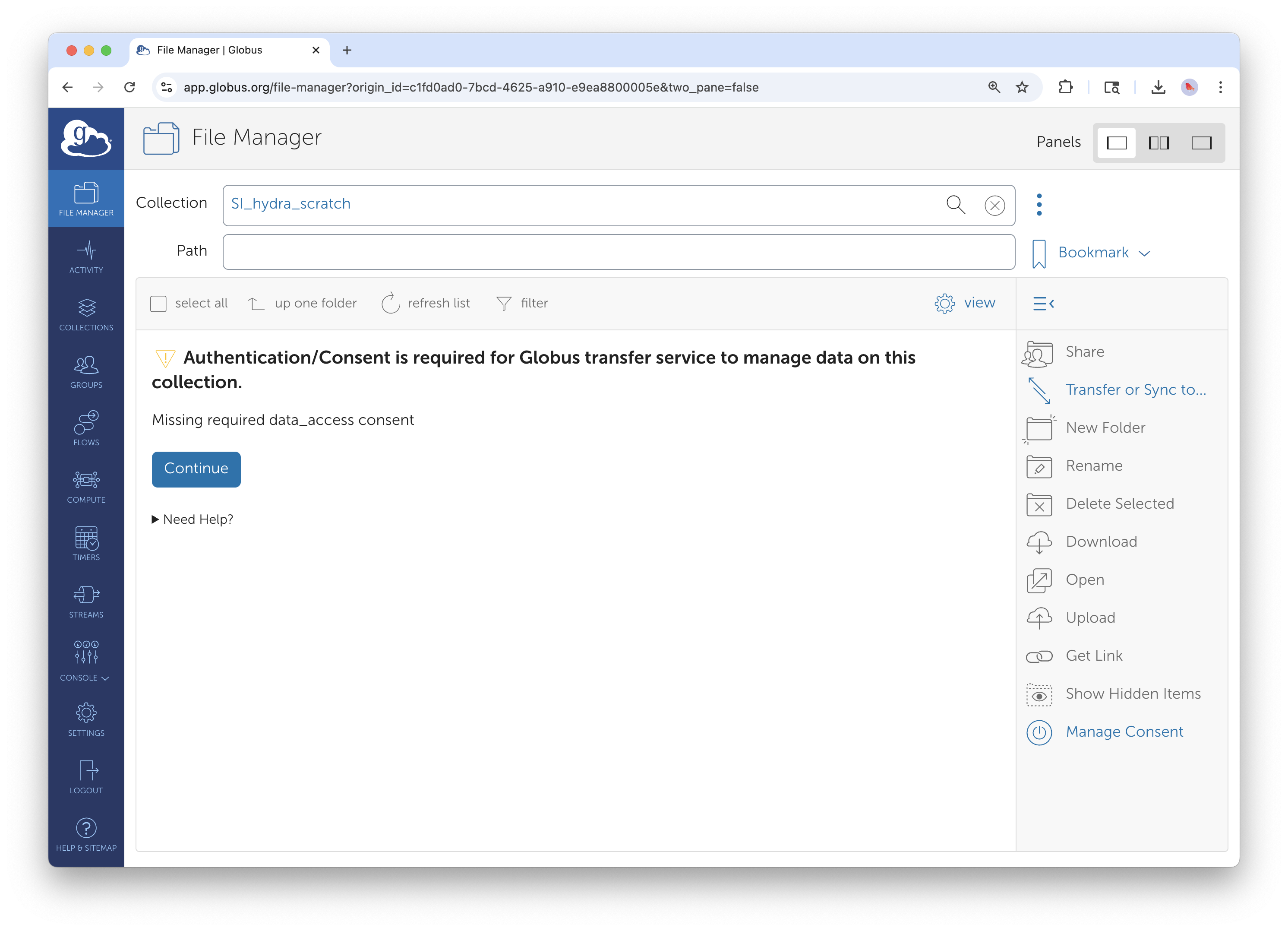
Some collections require additional authentication. Click Continue to proceed.
This happens when: - You're accessing a collection for the first time - Your authentication has expired - The collection requires specific credentials
Click Continue and follow the prompts to authenticate. This is normal and ensures secure access to protected data.
Troubleshooting Common Issues
Transfer Failures
Issue: Transfer fails with "Permission Denied" - Cause: You don't have appropriate access to the source or destination - Solution: Verify you have an account on the relevant storage system; contact system administrators if needed - For Hydra/DAMS: SI-HPC@si.edu - For DAMS Staging: SI-Globus@si.edu - For STRI: STRIhelp@si.edu
Issue: Transfer stalls or times out - Cause: Network interruption or endpoint temporarily unavailable - Solution: Globus automatically retries failed transfers. Check the Activity page—if the transfer is still "Active," it's working. If it failed, you can restart it.
Issue: "Endpoint not found" or collection not visible - Cause: The endpoint may be offline, or you may not have access - Solution: Try searching for the collection again; contact SI-Globus@si.edu if the issue persists
Login Problems
Issue: Can't find Smithsonian Institution in the organization list - Solution: Try searching for "Smithsonian" rather than specific unit names; ensure you're on app.globus.org
Issue: Login succeeds but collections show "Access Denied" - Cause: You're authenticated to Globus but don't have an account on the underlying storage system - Solution: Request appropriate server access (Hydra, STRI, etc.) from system administrators
Performance Issues
Issue: Transfers are slow - Cause: Large number of small files, network congestion, or endpoint load - Solution: For many small files, consider compressing into an archive first; schedule large transfers during off-peak hours
Next Steps: Building on the Basics
Now that you understand Globus fundamentals, explore these companion guides based on your needs:
Guide 2: Creating Guest Collections for External Collaboration
For: Staff who need to share data with collaborators outside Smithsonian
Learn how to create Guest Collections that give external partners controlled access to specific directories without requiring them to have Smithsonian accounts.
Guide 3: Globus Connect Personal
For: Staff with data on laptops, workstations, or external hard drives
Install Globus Connect Personal to create a collection on your personal device, enabling transfers between your laptop and institutional storage. This is essential for users who want to transfer data from workstations or external drives to institutionally managed storage like DAMS, Hydra, or STRI's NAS.
Guide 4: Advanced Globus Features
For: Power users ready to automate their data workflows
Explore advanced capabilities: Sync (instead of Transfer) for keeping directories synchronized, scheduled and recurring transfers, and Globus Flows for automated multi-step workflows.
Quick Reference
Key URLs
- Globus Web App: app.globus.org
- Globus Documentation: docs.globus.org
Smithsonian Support Contacts
- General Globus Support: SI-Globus@si.edu
- Hydra HPC Support: SI-HPC@si.edu
- DAMS NAS Workflows: SI-Globus@si.edu
- STRI Data Transfer Server: STRIhelp@si.edu
Glossary
| Term | Definition |
|---|---|
| Collection | A storage location accessible through Globus (formerly called "endpoint") |
| Endpoint | The server or system hosting one or more collections |
| Guest Collection | A shared folder you create to give others access to your data |
| Mapped Collection | An institutional collection that maps to underlying storage |
| Transfer | A one-time copy of files from source to destination |
| Sync | A transfer that only copies new or changed files |
For technical support with Globus, contact SI-Globus@si.edu. For questions about specific storage system access, contact the appropriate system administrators listed above.