graph TD;

  GenoHub[**GenoHub/LAB**]
  Metadata[**Map File**]
  Analyses(Run quality/adapter trimming, mitogenome assembly, etc)
  Scratch[(**Hydra Scratch**)]
  Store[(**Hydra Store**)]
  PDrive[(**P Drive**)]

  Move0[STEP 2: create map file]
  Move1[STEP 1: download FASTQs]
  Move3[copy important results]
  Move4[STEP 3: move to Hydra Store]
  Move5[STEP 4: backup to P drive]

  Move0-->Metadata
  Metadata-->Move4
  GenoHub-->Move1
  GenoHub-->Move0
  Scratch-->Move4
  Move1-->Scratch
  subgraph " "
    Scratch-->Analyses
    Analyses-->Move3
    Move3-->Store
    Move4-->Store
  end
  Store-->Move5
  Move5-->PDrive

  classDef process stroke:black,color:white,fill:#159BD7,stroke-dasharray: 5 5
  classDef storage stroke:black,color:white,fill:#159BD7
  classDef ccr stroke:black,color:white,fill:#159BD7
  classDef step stroke:black,color:black,fill:#a0c5fa,stroke-dasharray: 5 5

  class Rename,Analyses,Move2,Move3 process
  class Metadata,GenoHub,Scratch,Store,PDrive storage
  class Move0,Move1,Move4,Move5 step

  click Rename "bestpractices.html"

  linkStyle default stroke:grey, stroke-width:4px
Data management guide
Ocean DNA data storage and compute resources
The Ocean DNA group has access to the following disk storage. Please be mindful that these are shared resources.
- Hydra cluster scratch
- /scratch/nmnh_ocean_dna
- 90 TB
- Not backed up by Hydra admin
- No automatic file purging
- Accessible by all NMNH Ocean DNA users
- Hydra cluster store
- /store/nmnh_ocean_dna
- 70 TB
- Not backed up by Hydra admin
- No automatic file purging
- Intended for large raw data files and inactive projects
- Slower read/write speeds
- Can not be used for active analysis (not mounted on compute nodes)
- Accessible by all NMNH Ocean DNA users
- Smithsonian network P drive
- smb://si-ocio-qnas2.si.edu/nmnh/nmnh-all/public/nmnh-ocean-dna
- 80 TB
- Separate system from Hyrda, managed by OCIO
- Incrementally backed up daily
- Fully backed up weekly
- Only accessible from Smithsonian computers
- Access limited to NMNH Ocean DNA data managers
Data management flowchart
Step-by-step data management workflow
Below are step-by-step instructions for our data management workflow. This workflow was designed for genome skimming datasets, but could be modified for other types of sequencing projects.
Note
These instructions only pertain to raw sequence data. We do not have a standardized data management protocol for other data such as trimmed reads or analysis results.
STEP 1: download data
Note
We recommend initially downloading sequence data to /scratch/public/genomics/YOUR_USER_ID. This directory has the fastest read/write speeds and the largest storage quota. From there, you can move the sequence data to the appropriate location on Store.
GenoHub
If your sequencing was done by GenoHub, you should receive a link with instructions to download the raw sequence data. The data should be demultiplexed, compressed sequence reads in FASTQ format (i.e. files should end in “.fastq.gz” or “.fq.gz”).
You can download sequence data directly from GenoHub to Hydra using the AWS command line interface. First, load the AWS module and run configuration. Enter the information provided on the GenoHub download instructions page when prompted.
module load tools/awscli/2.15.27
aws configure
Now you can access the AWS storage bucket containing your sequence data. To list the bucket contents prior to downloading, run the following, replacing “XXXXXX” with your GenoHub project number.
aws s3 ls s3://genohubXXXXXXRun the following command to download your data. Replace “XXXXXX” with your GenoHub project number and specify the path to your desired download location.
aws s3 sync s3://genohubXXXXXXX /full/path/to/you/download/directoryNMNH LAB
If your sequencing was done at the NMNH LAB, you will receive a Dropbox link containing your sequence data. You can directly download the sequence data to your computer, then upload to Hydra with your method of choice.
Alternatively, you can download sequence data directly from Dropbox to Hydra using rclone. Advantages of rclone:
- Available on Hydra with
module load tools/rclone/1.66.0 - Copies multiple files in parallel
- Automatically performs checks to ensure complete file transfer
- Can resume an interrupted transfer by running the same
rclonecommand again
See instructions here for accessing Dropbox with rclone.
rclone example usage:
- Perform a "dry run" (list files but do not copy):rclone copy -v -n DROPBOX_REMOTE_NAME:/PATH/TO/DATA/ON/DROPBOX /PATH/TO/DESTINATION/ON/HYDRA- Copy files:copy -v DROPBOX_REMOTE_NAME:/PATH/TO/DATA/ON/DROPBOX /PATH/TO/DESTINATION/ON/HYDRA- Copy only files that end in ".fastq.gz"rclone copy -v --include "*.fastq.gz" DROPBOX_REMOTE_NAME:/PATH/TO/DATA/ON/DROPBOX /PATH/TO/DESTINATION/ON/HYDRASTEP 2: create the sequence data map file
The map file is a comma-separated values (CSV) file that lists all samples in the sequencing project. It is crucial for ensuring your data are interpretable.
GenoHub
If you sequenced with GenoHub, please use the following naming convention for your map file:
genohub-{GENOHUB-PROJECT-NUMBER}_{PROJECT-DESCRIPTION}_mapfile.csvFor example: genohub-8459898_Vietnam_mapfile.csv
Where “8459898” is the GenoHub project number and “Vietnam” is your description of the sequencing project. Do not include underscores or spaces in the project description.
NMNH LAB
If you sequenced with the NMNH LAB, please use the following naming convention for your map file:
LAB-{LAB-RUN-NAME}_{PROJECT-DESCRIPTION}_mapfile.csvFor example: LAB-240925VL008474AAG5MNMM5_IRL-2024-07_mapfile.csv
Where “240925VL008474AAG5MNMM5” is the LAB sequencing run name (with underscores removed) and “IRL-2024-07” is your description of the sequencing project. Do not include underscores or spaces in the project description.
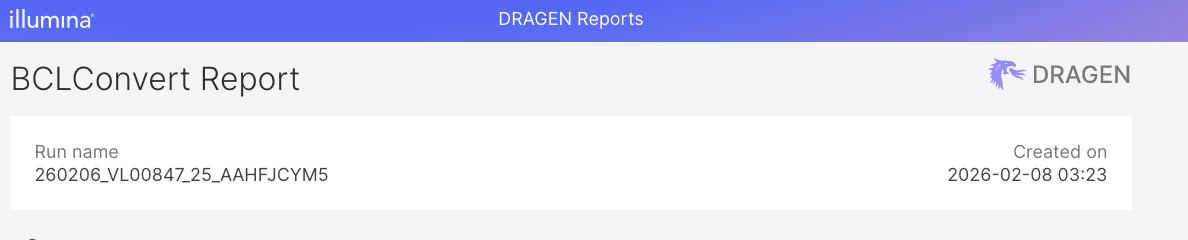
The sequencing run name can be found in the HTML report included in the Dropbox folder from LAB.
Map file requirements
The first five columns of your map file must be:
- ID: GenoHub/LAB sample name. For example:
I-0025-99AD-1N1
- R1: Read 1 FASTQ file name. For example:
I-0025-99AD-1N1_1.fastq.gz
- R2: Read 2 FASTQ file name. For example:
I-0025-99AD-1N1_2.fastq.gz
- Taxon: Your best guess at taxonomic assignment, no required format. For example:
- Latin binomial:
Urophycis chuss - Genus:
Urophycis sp. - Higher level taxonomy:
Phycidae - Combination:
Gadiformes_Phycidae_Urophycis_chuss
- Latin binomial:
- UniqID: Identifier linked to a voucher/tissue sample, no required format. For example:
- USNM catalog number:
USNM 477715 - EMu EZID:
http://n2t.net/ark:/65665/3987722bd-99bc-4913-a279-092f58c82d72 - GEOME BCID:
https://n2t.net/ark:/21547/FxY2USNM_Fish_477715.1
- USNM catalog number:
You may include other metadata as additional columns in the map file.
Note
We strongly advise the use of globally/universally unique identifiers (GUIDs/UUIDs) for the UniqID column. If you need to generate these IDs, consider creating a project in GEOME.
Important
The first five columns must contain information for all samples in the map file. We will contact you if there is any missing data.
STEP 3: move sequence data and map file to Hydra Store
The Ocean DNA Store directory on Hydra contains two subdirectories where you should upload your data.
1. /store/nmnh_ocean_dna/public/raw_sequence_data
Each directory within raw_sequence_data should contain the results of a sequencing project. To save disk space, please ensure that all sequence files are compressed (e.g. sequence1.fastq.gz).
GenoHub
For GenoHub sequencing projects, please use the following naming convention for your directories:
genohub-{GENOHUB-PROJECT-NUMBER}_{PROJECT-DESCRIPTION}For example: “genohub-8459898_Vietnam”
Where “8459898” is the GenoHub project number and “Vietnam” is your description of the sequencing project. Do not include underscores or spaces in the project description.
NMNH LAB
For LAB sequencing projects, please use the following naming convention for your directories:
LAB-{LAB-RUN-NAME}_{PROJECT-DESCRIPTION}For example: LAB-240925VL008474AAG5MNMM5_IRL-2024-07
Where “240925VL008474AAG5MNMM5” is the LAB sequencing run name (with underscores removed) and “IRL-2024-07” is your description of the sequencing project. Do not include underscores or spaces in the project description.
The sequencing run name can be found in the HTML report included in the Dropbox folder from LAB.
The project directory
To create a new directory for your project:
cd /store/nmnh_ocean_dna/public/raw_sequence_data
mkdir genohub-XXXXXX_MY-PROJECT-DESCRIPTION
You can now copy your sequence data to this directory. There are many ways to copy data, including:
- “Drag and drop” with a file browser (not recommended)
- The Linux
cpcommand (not recommended)- Copies one file at a time, fairly slow
- Does not check for complete file transfer, which can lead to corrupt files at the destination
- rclone
- Available on Hydra with
module load tools/rclone/1.66.0 - Copies multiple files in parallel
- Automatically performs checks to ensure complete file transfer
- Can resume an interrupted transfer by running the same
rclonecommand again - Example usage:
- Perform a “dry run” (list files but do not copy):
rclone copy -v -n /PATH/TO/SOURCE /PATH/TO/DESTINATION- Copy files:
rclone copy -v /PATH/TO/SOURCE /PATH/TO/DESTINATION- Copy only files that end in “.fastq.gz”
rclone copy -v --include "*.fastq.gz" /PATH/TO/SOURCE /PATH/TO/DESTINATION
- Available on Hydra with
- Globus
- Web-based file transfer service
- Normally used to transfer data between servers, but can also perform data transfers within Hydra
- Does not require you to maintain an active connection to Hydra while files transfer
- See the documentation for additional information
2. /store/nmnh_ocean_dna/public/raw_sequence_metadata
Each directory in raw_sequence_data must be accompanied by a CSV map file in raw_sequence_metadata. The names of the map files should match the names of the sequence directories (with the addition of _mapfile.csv).
You can upload the map file to raw_sequence_metadata using your favorite SCP or SFTP client (e.g. FileZilla, WinSCP, Cyberduck).
STEP 4: backup Hydra Store to P drive
After adding new sequence data and the corresponding map file to Hydra Store, please contact Dan MacGuigan. He will copy your data to the Ocean DNA P drive directory. Data transfer may take several hours, depending on the size of your dataset.
The P drive is a separate system from Hydra and is backed up frequently by the Smithsonian OCIO. To keep these data backups secure, Dan MacGuigan is the only person with access to the Ocean DNA P drive.
Instructions for Data Manager:
Below are the general instructions for backing up data on Hydra Store to the P drive. These instructions are specifically for Mac OS, but could be modified to work on a Windows PC.
To access the P drive, you will need a Smithsonian computer connected to SI-staff wifi or plugged into the SI ethernet. You will also need to be added as a user to the Ocean DNA P drive. Our NMNH IT contact for help with network drives is Joshua Henry.
First, we need to validate that map files and raw data directories contain the same files. Instructions for this step are forthcoming.
Next, establish a connection with the P drive. In the Mac menu bar, select Go > Connect to Server and enter the following address:
smb://si-ocio-qnas2.si.edu/nmnh/nmnh-all/public/nmnh-ocean-dnaThis will open a new finder window. The P drive structure is as follows:
- Hydra_backup
- store
- raw_sequence_data
- raw_squence_metadata
- raw_sequence_metadata_backups
- store
There are other directories, but these are the relevant ones for our data management purposes.
Prior to copying new map files to the P drive, you should make a backup of the existing directory. Open the store directory in the terminal and run the following commands. For YEAR-MONTH-DAY, please use the format 2025-09-26.
cp -r raw_sequence_metadata raw_sequence_metadata_backups/raw_sequence_metadata_YEAR-MONTH-DAY
cd raw_sequence_metadata_backups
tar -zcvf raw_sequence_metadata_YEAR-MONTH-DAY.tar.gz raw_sequence_metadata_YEAR-MONTH-DAY
rm -r raw_sequence_metadata_YEAR-MONTH-DAY
We will use rclone to copy data from Hydra directly to the P drive. Installation instructions are available here.
If this is the first time using rclone to connect to Hydra, run rclone config. Select the following options:
- n - New remote
- name> SI-Hydra
- storage> 48 (check the list, 48 should be for sftp)
- host> hydra-login01.si.edu
- user> YOUR_USER_ID
For all other config questions, press enter to accept the default values and choose n when asked “Edit advanced config?”. When finished, enter q to quit to config setup.
We can now copy data to/from Hydra using Rclone.
rclone copyCopy the source to the destination. Does not transfer files that are identical on source and destination, testing by size and modification time or MD5SUM. Doesn’t delete files from the destination.
Note that it is always the contents of the directory that is synced, not the directory itself. So when source:path is a directory, it’s the contents of source:path that are copied, not the directory name and contents.
Note that after rclone copies a file, it will calculate and compare checksums to ensure successful file transfer.
First we’ll copy the metadata. On the command line, run the following:
cd /Volumes/nmnh-ocean-dna/Hydra_backup/store/public/raw_sequence_metadata
rclone copy -v -n SI-Hydra:/store/nmnh_ocean_dna/public/raw_sequence_metadata/ .
-v tells rclone to produce verbose output, -c tell Rclone to use checksums, -n tells rclone to perform a “dry run”, listing files and sizes but not copying
If this dry run looks good, initiate the transfer with:
rclone copy -v SI-Hydra:/store/nmnh_ocean_dna/public/raw_sequence_metadata . The metadata should copy quickly. Now let’s do the same process for the sequence data.
cd /Volumes/nmnh-ocean-dna/Hydra_backup/store/raw_sequence_data
rclone copy -v -n SI-Hydra:/store/nmnh_ocean_dna/public/raw_sequence_data .
And again, if the dry run looks good, proceed with transfer.
rclone copy -v SI-Hydra:/store/nmnh_ocean_dna/public/raw_sequence_data . If either transfer is interrupted, simply rerun the command to resume.
Important: after backing up sequence data to the P drive, the data manager should make all of the FASTQ files on Store read-only. This will mitigate the risk of accidental overwrite or deletion.
Run the following command in the relevant sequence data folders on Store. This will make all fastq.gz files read-only..
chmod 444 *.fastq.gzMore info about chmod can be found here.